How to improve Wi-Fi signal quality at home?
12. 10. 2020
The importance of a good home connection has been growing steadily. The internet at home is used for far more than entertainment; in recent months in particular, it has also become essential for work and study. In this article we take a closer look at ways to improve the quality of your home Wi-Fi signal, and we introduce the possible causes of its interference or slowdown.
Before we start, we must point out one undeniable fact: some routers, including good-quality home ones, are not capable of transferring speeds above 100 Mbps over their wireless part, and when certain functions are activated, such as a firewall, they will limit the speed of your connection over cable as well. You may therefore be unhappy with your connection for no reason at all. Communicating with many devices at high speeds of tens or even hundreds of megabits requires a solid hardware base. A router has a processor, just like any other electronic device. Cheap means slow, expensive means fast.
Quality is the key
When it comes to a quality internet connection and signal, the rule is that you generally don't get much for little money. So don't be afraid to invest in a really good router; when choosing one, you can take inspiration, for example, from here. Choosing the right type of internet connection is just as important. Consider what options your municipality or town offers, and don't be dazzled by tempting but slightly misleading offers, for example for a home LTE connection.
Switch it off and on again?
Sometimes that helps. If you notice only occasional, rather than long-term, deterioration of your Wi-Fi signal at home, you can try one of the simplest solutions before any other steps: temporarily switching off or restarting your router. You can simply switch the router off for a while and then on again, or unplug it from the mains for a few minutes. However, if you don't have much experience, do not perform a reset of the network settings, as you might not be able to re-enter the necessary details. Even in this case, don't despair, and don't hesitate to contact your internet provider. More experienced users will usually only need to set the security rules for the wireless network: the SSID, i.e. the Wi-Fi network name, the password and the level of encryption. Authorisation to the network is usually set automatically by the operator for the network endpoint, and today the DHCP server is also usually fine with the AUTO setting.
Beware of obstacles
Where have you placed your Wi-Fi router? You might be surprised how many users literally hide their routers in cupboards, storerooms or corners of rooms. However, the signal your router transmits should have as few obstacles in its path as possible. Any barriers, from shelves to walls or the ceiling, absorb this signal. The signal from a router can also be negatively affected by nearby devices such as televisions, fridges and other electronics of this kind. So you should place your router so that the signal from its antennas can, as far as possible, reach where you need it without problems. Although this may be difficult for many reasons, the router in a flat should ideally be placed in an open room and at a higher point. Don't be afraid to adjust the router's antennas: if you have two antennas, one should point horizontally and the other vertically. If there are more antennas, you can point one upwards and the others in other directions into the space. The router should not be placed on the floor but rather higher up; some users don't hesitate to mount their Wi-Fi routers on the ceiling.
Try another band
Most current routers are dual-band, which means they offer a choice between the 2.4 GHz and 5 GHz bands. The first of these is more commonly used. This is because the 2.4 GHz band, with its lower carrier frequency, makes it easier for the signal to spread. That is also why interference occurs more often on the 2.4 GHz band. For example, if your neighbours in the apartment building use the same band, a significant degradation of the signal can occur. If you don't have the 5 GHz band activated on your router, you can activate it in the router settings. If necessary, you can then connect to 5 GHz Wi-Fi instead of 2.4 GHz. If you are worried that uninvited guests are connecting to your home Wi-Fi, take a look at our tips for securing it better.
Equip your home
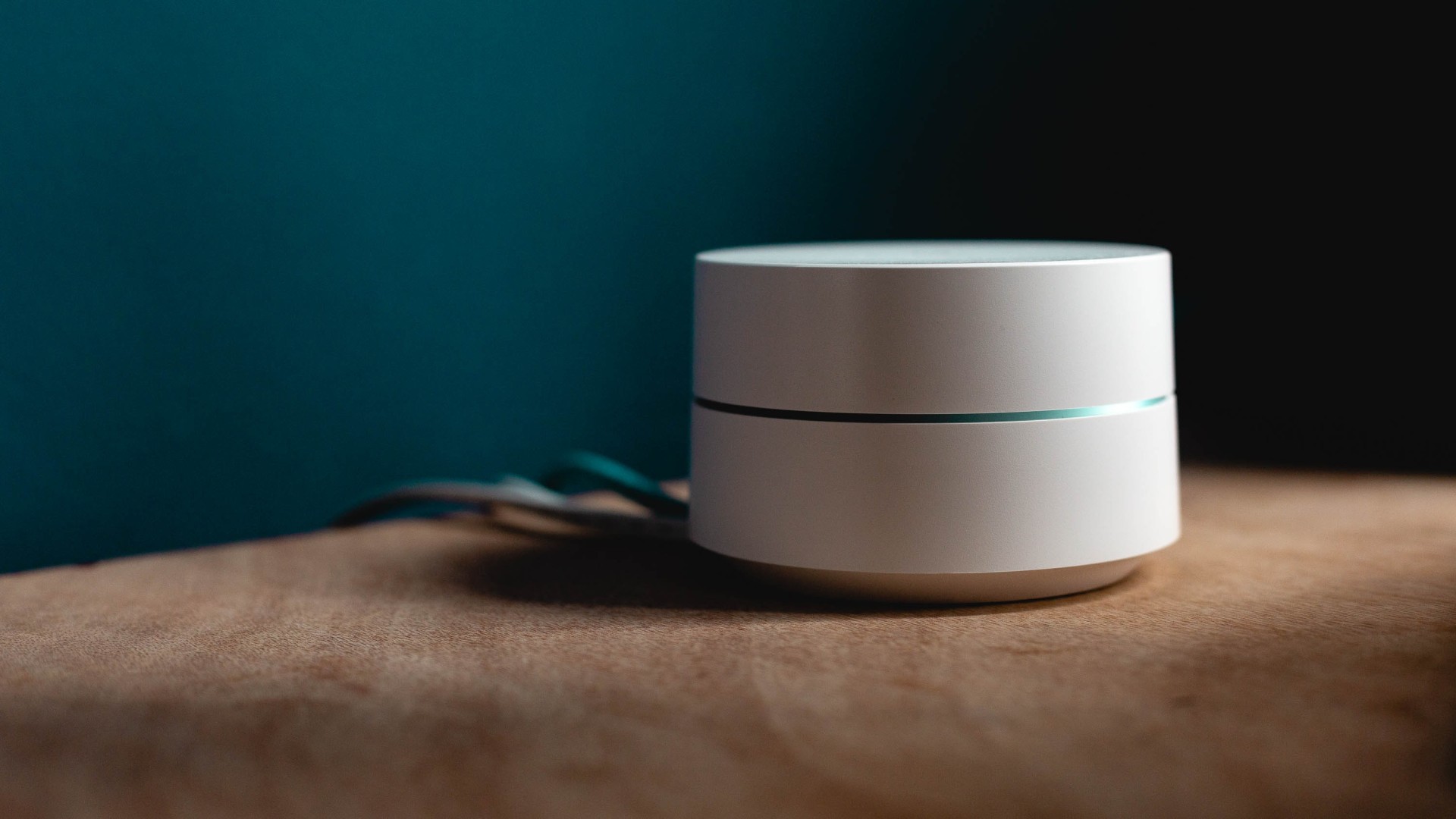
The completely reliable and lasting solution to your problems with your home Wi-Fi connection is the introduction of so-called mesh network devices. The term “mesh network” refers to a single Wi-Fi network made up of several transmitting units. Technically, it is a network with an unspecified topology, where each node communicates with every other node depending on the situation and the users' requirements. The individual units of this type of network communicate with each other and, in simple terms, hand over the connected devices between one another in roaming, as in a mobile network, so that all your phones, tablets and laptops are connected by the control unit in the way that always ensures the best possible connectivity. You will appreciate the great advantage of MESH networks one hundred per cent. It is enough to set one password for the whole premises. If you have one Wi-Fi router with a different network on one floor, another on the other floor and a third in the garden, you are constantly switching between users. With a MESH network you can literally forget about that.
The number of units in a mesh network depends on the size and complexity of the area you need to cover with the Wi-Fi signal. Mesh networks are mainly useful in family houses, where with their help you can extend a high-quality signal even to the garden. One of the units is always the main one. You connect the main unit with one port to the source of the internet connection in your home, while the second port serves for connection to the network wiring. Although setting up a mesh network may sound complicated to less experienced users, it is nothing that the smartphone app included with almost every device of this type cannot guide you through. Your internet provider can also help you. The individual units of a home mesh network should be sufficiently far apart from each other, and you should place them strategically so that they cover the appropriate area without problems. Users usually choose wireless connectivity to link the individual units, but a better solution is an ethernet cable: the units then communicate with each other via gigabit ethernet, and their wireless parts are not burdened.
Continue with the article How the internet works and find out more about this service.
Updated 15 March 2024