How to secure your home Wi-Fi network?
29. 9. 2020
Connecting your home to the internet is nothing complicated these days, and even a less experienced user can manage it with ease. Surprisingly, a large number of people are content with the basic settings of their home Wi-Fi network and do not give much thought to security measures. The truth is that the probability of someone deliberately endangering the security of an ordinary user's Wi-Fi network is really very low. But that does not mean you should needlessly risk even the possibility of an inventive neighbour connecting to your Wi-Fi. If someone gets into the settings of your unsecured Wi-Fi network, they can misuse it not only to browse the internet for their own purposes, but in extreme cases they can cut you off from the connection, or misuse your connection for illegal activity. In today's article we will look at the options for securing your Wi-Fi network.
My router, my castle
TIP: Also read the article Home network security
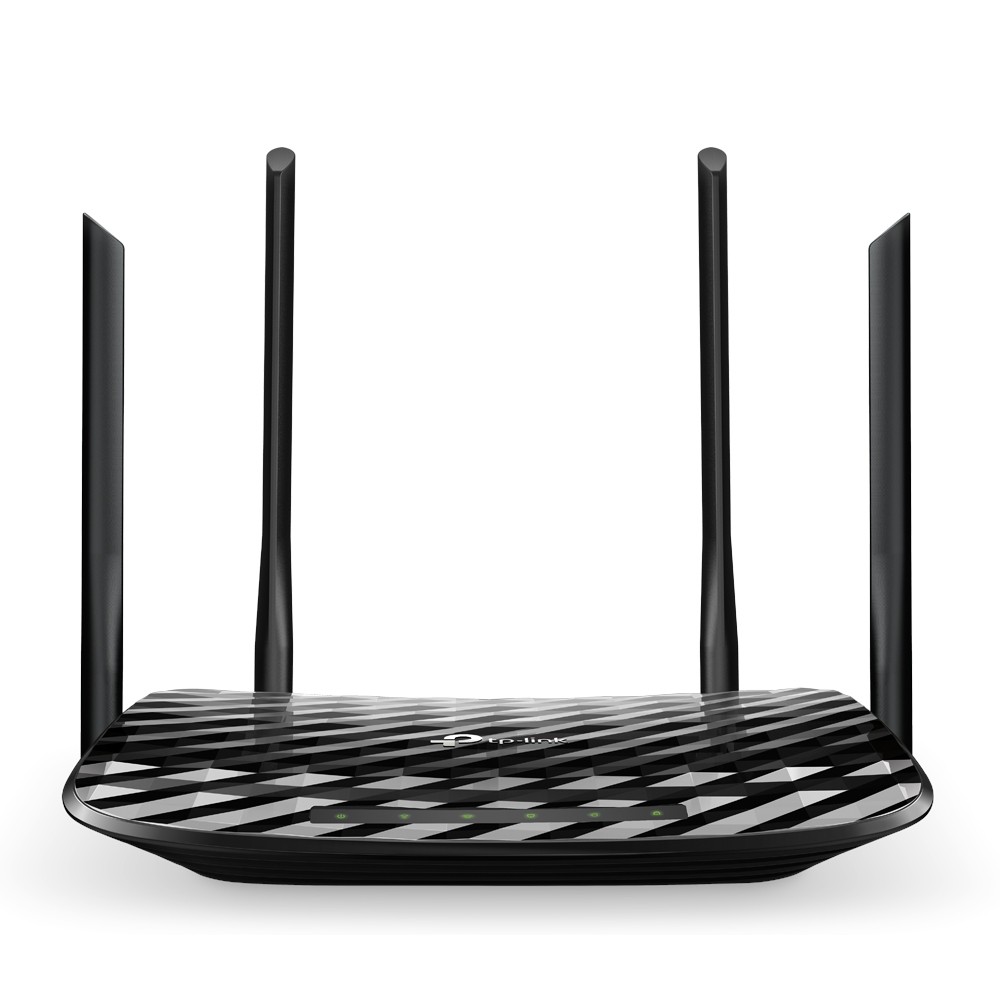
When you first set up your home Wi-Fi network, you will surely have chosen your own password. However, there are in fact more steps that lead to even better security. First of all, we will look at how to configure the properties of your wireless network. You will need a working internet connection and a computer, into whose web browser you enter the IP address of your Wi-Fi router. You will find this in the manual, or on the packaging or underneath the device. Enter this IP address into the address bar of your web browser and then enter the login name and password for your router. This is the administration password, not the password for your Wi-Fi network. If you did not change these details when setting up your Wi-Fi network, you will again find them on the router, on the packaging or in the manual. The administration interfaces of individual routers may differ from one another, but the basic settings are always the same: the network name, the administration password of the access point, and the management of MAC addresses.
SSID, or the name on the door
The abbreviation SSID stands for the name of the network. It is the name you can see in the list of available Wi-Fi networks nearby. Many people keep the default SSID name, or give their Wi-Fi network a name of their own. However, if you want to increase your security, you can hide the name of your Wi-Fi from prying eyes. Put simply, a Wi-Fi network that is not publicly visible is less at risk. In your router's settings, click on the SSID section, where, besides the option to rename it, you will also find the option to hide the name of your Wi-Fi. Before you hide it, however, carefully note the name down somewhere safe, because the other members of your household will need its exact name to connect after you make the change in the settings.
I encrypt, you encrypt, we encrypt
Encryption is a very important step in securing your Wi-Fi network, as it greatly reduces the probability that someone will successfully break into it. Many routers use WEP encryption by default, but this is no longer considered very reliable. In your router's administration, click through to the encryption section and change it to WPA or, ideally, WPA2. WPA2 encryption ensures that nobody can reach your Wi-Fi network without knowing the password. Make an effort and choose the most complicated password you can. Passwords such as “Smiths_Wifi” are easy to remember, but they are just as easy to guess. An ideal password should have at least 8 characters, and should alternate between lower and upper case letters, numbers and other characters. It certainly does no harm to change your Wi-Fi password regularly, just to be sure.
MAC address filtering
A MAC address (MAC – Media Access Control) is, put simply, the unique identification number of a network device. Thanks to MAC address filtering, you can make sure that only certain devices have access to your Wi-Fi network, which increases its security even further. Whenever another device tries to connect to your network, the router will deny it access. MAC address filtering in the router settings has two possible options: allowing access to specific addresses, or, conversely, denying access to specific devices. However, MAC address filtering has the disadvantage that it makes it harder for visitors to connect to your home Wi-Fi. On a Windows computer you can find the MAC address by clicking Start -> All Programs -> Accessories -> Command Prompt. Then enter the command ipconfig /all into the Command Prompt. To find the MAC address on a computer running macOS / OS X, click the apple icon in the top left corner -> System Preferences -> Network. In the bottom right corner of the card, click Advanced and then Hardware at the top of the window.
Belt and braces
If you really want your Wi-Fi network to be secure, you should ideally combine all of the measures mentioned here. These settings will not take up much of your time, and they are a very small price to pay for a 100% secure network. If you want to increase your internet security even more, you can look at how to behave safely on the network. If you have any doubts or uncertainties, do not hesitate to contact the provider of your internet connection.
Updated 15 March 2024