How to look after your computer hard drive
22. 5. 2020
The hard disk (HDD – Hard Disk Drive) is the part of the computer on which all important data is stored, from documents and multimedia content to installed programs and applications. The disk, made up of rigid platters – discs – is housed inside a solid metal casing, which protects it from external harmful influences. In the immediate vicinity of the disk there is an important interface, which provides power to the disk and its interaction with the rest of the computer. Inside the disk are its integral and highly sensitive components together with mechanical parts, thanks to which the disk can work properly. An important parameter of a disk, besides its capacity, is also its speed or access time.
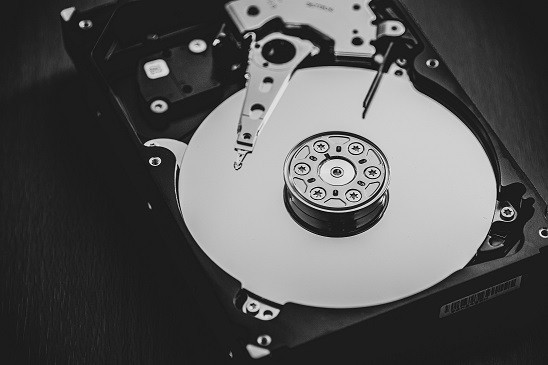
Under standard conditions, the hard disk always works through precisely defined steps. After you switch on the computer and power reaches the disk, the disk runs a “check status” check and an automatic test of its individual components. If all the checks come out well, the disk spindle and its platters gradually spin up, and information starts to be read by the read heads.
TIP: Also read our article Internet over the 220 V power grid? Why not?
Most common complications and smart checking
One of the most common forms of hard disk damage is damage to its sectors. A sector is a unit of storage space on the hard disk of precisely defined length (originally 512 bytes, now usually 4,096 bytes). It is usually caused by wear, or by mechanical or thermal damage. The best prevention against damage to hard disk sectors is great and strict care when handling the computer. Protect your computer – whether it is a laptop, an all-in-one computer or a classic PC setup – from knocks, and try not to expose it to extreme changes in temperature. Laptop owners should be extremely careful when carrying their devices. If you travel with a laptop in very cold or hot weather, switch the computer off completely and give it enough time to adjust to the temperature change before starting it up. Always try to prevent the laptop from falling to the floor – in such cases, the disk may suffer serious damage which even a specialist service may have trouble repairing.
Learn to listen to your disk – literally. Excessive noise during operation may indicate a problem with the bearings. Sometimes you may notice that the disk is trying to “spin up”, but the computer always shuts down prematurely. In any case, leave the repair of faulty bearings to professionals.
For the vast majority of today's hard disks, much of the checking can be taken over by a technology called S.M.A.R.T. – an abbreviation of “Self-Monitoring Analysis And Reporting Technology”. Using this technology, your hard disk is automatically monitored and analysed and its condition is checked, which should allow faults and problems to be detected early. You can follow the output of these checks with special software, such as HD Tune, Hard Drive Inspector, HDD Health or, for example, Hard Disk Monitor.
Prevention is the foundation
Many users devote enormous attention to constantly “tuning” and boosting the performance of their hard disk, but maintenance and prevention of complications are also an integral part of caring for it. Just as you tidy up at home or in the office, you need to tidy up your hard disk from time to time. Windows PC owners can use utilities such as Disk Cleanup or Defragmentation. There are also software tools that help you find duplicate files on the disk, get rid of them and thus free up precious space. Regularly go through your computer and get rid of not only unnecessary documents, videos and pictures, but also apps and programs you no longer use. On a Windows 10 PC, search for Disk Cleanup in the taskbar and run it. Select the types of files you want to delete and confirm your choice. To defragment on Windows, type “defrag” into the search on the taskbar and choose the option “Defragment and Optimize Drives”. Select the required drive and click Optimize. If you decide to remove unnecessary files on Windows with software such as CCleaner, first make a thorough backup of the system and do not embark on operations you are not sure about.
On a Mac, open Finder, where you click Go -> Utilities -> Disk Utility. Here, select the required disk and click First Aid, which will start a search for errors and repair them if possible. If you want to use special software to clean your Mac, choose carefully, so that instead of cleaning it you do not accidentally damage your Mac for good or install harmful software on it. For example, AVG Cleaner for Mac will serve you well.
In extreme cases, a hard disk can be damaged and data lost even “out of the blue”, and the damage may be irreparable. Backing up data is a step that should never be neglected under any circumstances. There is a wide range of software tools that make backing up your data automatic and effortless. We recommend always keeping three copies of your backups: one on your computer's disk, one on an external hard drive, and one located completely away from your home or office – ideally in cloud storage.
Just as you take care of yourself, your flat or your car, your computer also requires careful attention. Try to give it proper rest from time to time by switching it off completely. Do not install piles of unknown software, and protect your computer not only from shocks and knocks, but also from dirt, spills and foreign objects. If you work on a laptop that you often carry around, consider buying accessories such as tough covers and cases, or invest in keyboard protection against spills.
There is absolutely no need to feel embarrassed if you do not dare to carry out any of the procedures above yourself at home. In that case, do not hesitate to regularly entrust your computer to experts, who will responsibly take care of the basic maintenance of your device.
A reliable successor
The successors to the classic hard disk drives discussed in this article (HDD) are SSD drives. SSD is an abbreviation of “Solid State Drive”. SSDs are truly “solid”: they do not work with any arm or recording groove. In principle, a mechanical HDD is still similar to a gramophone. The memory cells are similar to those in a USB flash drive, but SSDs allow an order of magnitude more write cycles, because memory cells lose the ability to retain data through frequent use. Thanks to the absence of moving mechanical parts, SSDs are more resistant to external influences such as shocks, falls or changes in pressure, their operation is perfectly silent and, in addition, they offer higher transfer speeds and lower power consumption. An SSD will noticeably speed up your computer compared with a classic HDD. With this type of drive there is no need to worry about regular defragmentation, and an SSD is also considerably lighter and smaller. The disadvantage is the higher price – but the hard disk is the heart of the computer. Slow access to data can ruin the impression even of a computer equipped with a very fast processor.
It is good that you take care of your device. We also recommend reading our article Protecting your computer? Prevention is priceless.
Updated 5 March 2024
You might also be interested in


9. 9. 2026
Two-factor authentication: the safeguard that works even if someone steals your password
Whole article






22. 5. 2020